Connecting WhatsApp to a SWAI Phone Number
Connecting WhatsApp to a SWAI Phone Number
Use Call Forwarding so WhatsApp can verify a SWAI number by voice call, then connect that WhatsApp account in SWAI.
What is this for?
Many WhatsApp sign-ups need a voice call to verify the phone number. If that number is a SWAI Phone System number, you can temporarily forward inbound calls to a personal phone, complete WhatsApp verification, then connect WhatsApp in SWAI so the WhatsApp number and the SWAI phone number are the same.
You use this flow to:
- Forward inbound calls from a SWAI number to a phone you can answer
- Verify WhatsApp with a call (not SMS)
- Connect that WhatsApp account to SWAI for messaging
- Turn Call Forwarding off again so Agents work normally
Main screens
| Screen | What it’s for |
|---|---|
| Settings → Phone System (open) (scroll to your numbers) | Pick a number, open Details, set Call forwarding |
| WhatsApp app on your phone | Sign up / verify with a voice call |
| Settings → WhatsApp (open) | Connect the verified account to SWAI (QR / Web session) |
Note: Day-to-day WhatsApp connection is also covered in WhatsApp and Conversational Agents. This article focuses on verifying WhatsApp on the same number as your SWAI phone line.
Before you start
- Have a Connected / active SWAI phone number on the correct brand.
- Have a personal phone that can receive voice calls (you will enter it under Call Forwarding).
- Be ready to install or open WhatsApp on a device and keep that session logged in after you connect to SWAI.
- Plan to turn Call Forwarding off when verification is done so AI voice and Agents work again.
Warning: While Call forwarding is on, SWAI turns off verification softphone and AI voice for that number. Use forwarding only for WhatsApp call verification, then disable it.
Quick start
- Open Settings → Phone System (or go to app.swai.ai/setting/phone-system) and scroll down to your numbers.
- Choose your number → Details.
- Under Call forwarding, enter a personal number → Save number → turn Call forwarding on.
- In the WhatsApp app, verify with a call, answer the forwarded call, and enter the code.
- Connect that WhatsApp account in Settings → WhatsApp (or go to app.swai.ai/setting/whatsapp).
- Keep WhatsApp logged in on a device.
- Turn Call forwarding off on the SWAI number.
Step 1 — Open Phone System and expand Details
- In the SWAI Dashboard, open Settings → Phone System (or go to app.swai.ai/setting/phone-system).
- Scroll down to your phone numbers.
- Find the number you want WhatsApp to use.
- Click Details on that row.
The panel expands with details such as E.164, PROVIDER ID, SOURCE, and LOCAL RECORD, plus toggles for inbound behavior.
| Control | Notes |
|---|---|
| Details | Expands configuration for that number |
| Wait for verification code | Softphone / Conversations path — leave as needed; Call Forwarding overrides AI voice while enabled |
| Status | Look for Connected and active before you continue |
Step 2 — Save a forward-to number, then enable Call Forwarding
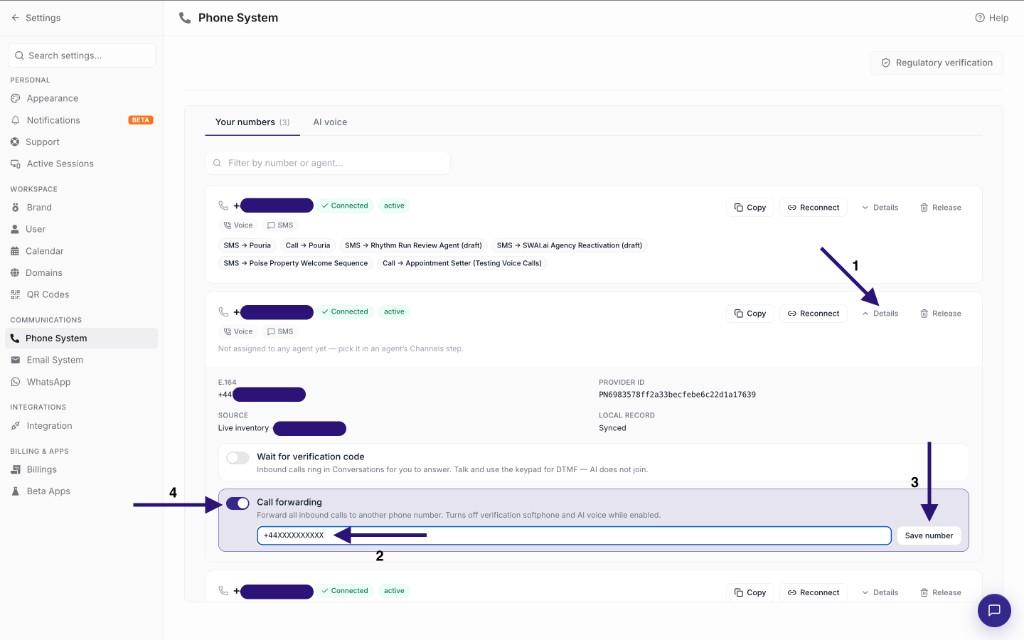
- Find Call forwarding.
- In the phone field (for example
+44XXXXXXXXXX), enter a personal number that can receive calls. Use international format. - Click Save number.
- Turn the Call forwarding toggle on.
On-screen description: Forward all inbound calls to another phone number. Turns off verification softphone and AI voice while enabled.
Tip: Save the number first, then enable the toggle. Confirm the toggle is on before you start WhatsApp verification.
Warning: Leave Call Forwarding on only until WhatsApp call verification succeeds. Agents need it off afterward.
Step 3 — Verify WhatsApp with a call
- On your phone, open WhatsApp and start sign-up or verification for the same number as your SWAI line (the E.164 shown in Details).
- When WhatsApp offers verification, choose call / Call me (not SMS).
- Wait for the call. It should ring on the personal number you saved under Call Forwarding.
- Answer and enter the verification code WhatsApp provides.
When this succeeds, WhatsApp on that device is registered to the SWAI phone number.
Step 4 — Connect WhatsApp to SWAI
- Open Settings → WhatsApp in SWAI (or go to app.swai.ai/setting/whatsapp).
- Complete the connect steps shown (typically a WhatsApp Web / QR session).
- Confirm the connected account uses the same number as your SWAI phone line.
- If you use Conversational Agents, select that WhatsApp session on the agent’s Channels step — see Conversational Agents.
Note: Connecting in SWAI does not replace keeping WhatsApp active on a device. See the warnings below.
After you connect
Keep WhatsApp on a device
Warning: Keep this WhatsApp account logged in on a phone or device even after you connect it to SWAI. If the device session ends, messaging through SWAI can stop until you reconnect.
Turn Call Forwarding off
- Return to Settings → Phone System (or go to app.swai.ai/setting/phone-system) and scroll down to your numbers.
- Open Details for the same number.
- Turn Call forwarding off.
Warning: Leave Call Forwarding off for normal Agent and AI voice use. Turn it on again only if you need another WhatsApp call verification.
Common warnings and troubleshooting
Call never arrives during WhatsApp verification
- Confirm Save number succeeded and Call forwarding is on.
- Check the personal number is in international format and can receive calls.
- Confirm you chose call verification in WhatsApp, not SMS.
- Retry verification after a short wait.
AI voice or Agents stop answering after setup
Turn Call forwarding off. Forwarding disables verification softphone and AI voice while enabled.
WhatsApp connected but messages fail later
- Confirm WhatsApp is still logged in on a device.
- Reconnect the session in Settings → WhatsApp if needed (or go to app.swai.ai/setting/whatsapp; often by scanning the QR again).
- Confirm the agent still has that WhatsApp session selected.
Number not Connected / active
Finish Phone System setup (including Regulatory verification when required) so the number shows Connected. See Phone System.
Glossary
| Term | Meaning |
|---|---|
| Call forwarding | Forwards all inbound calls on a SWAI number to another phone; turns off softphone and AI voice while on |
| Save number | Stores the personal forward-to number before you enable Call Forwarding |
| Details | Expanded row panel for one SWAI phone number |
| E.164 | International format of the SWAI number (what WhatsApp should verify) |
Need more help?
- Note whether Call Forwarding was on or off and which number you used.
- Confirm brand, SWAI number status, and whether WhatsApp call verification finished.
- Contact support with brand, SWAI number, and approximate time of the issue.
Related Help: Phone System, WhatsApp, Conversational Agents, Getting Started.